How to Use Glasp’s Atomic Interest Graph to Map Your Knowledge Journey

Sep 22, 2025
3 min read
66 views

Have you ever wished you could visualize your learning journey—to see how your interests connect, overlap, and evolve over time? With Glasp’s Atomic Interest Graph, you can do exactly that. By tagging your highlights, Glasp automatically builds a visual map that shows the relationships between your chosen topics.
This feature not only helps you understand what you’ve been focusing on but also uncovers patterns in your thinking, giving you clarity on where your learning is headed.
In this tutorial, we’ll show you how to set up and expand your Atomic Interest Graph.
If you haven't signed up for Glasp or installed the Glasp browser extension, please do so. You can refer to this tutorial.
Step 1: Add Tags
As you’re reading and highlighting articles, this is where the fun gets! Do not forget to put a tag on your highlighted pages because this is what will make your Atomic Interest Graph expand.
For instance, on your highlighted page you may input the term “Self-improvement” under “Tag” if it is related to the article you’ve read.
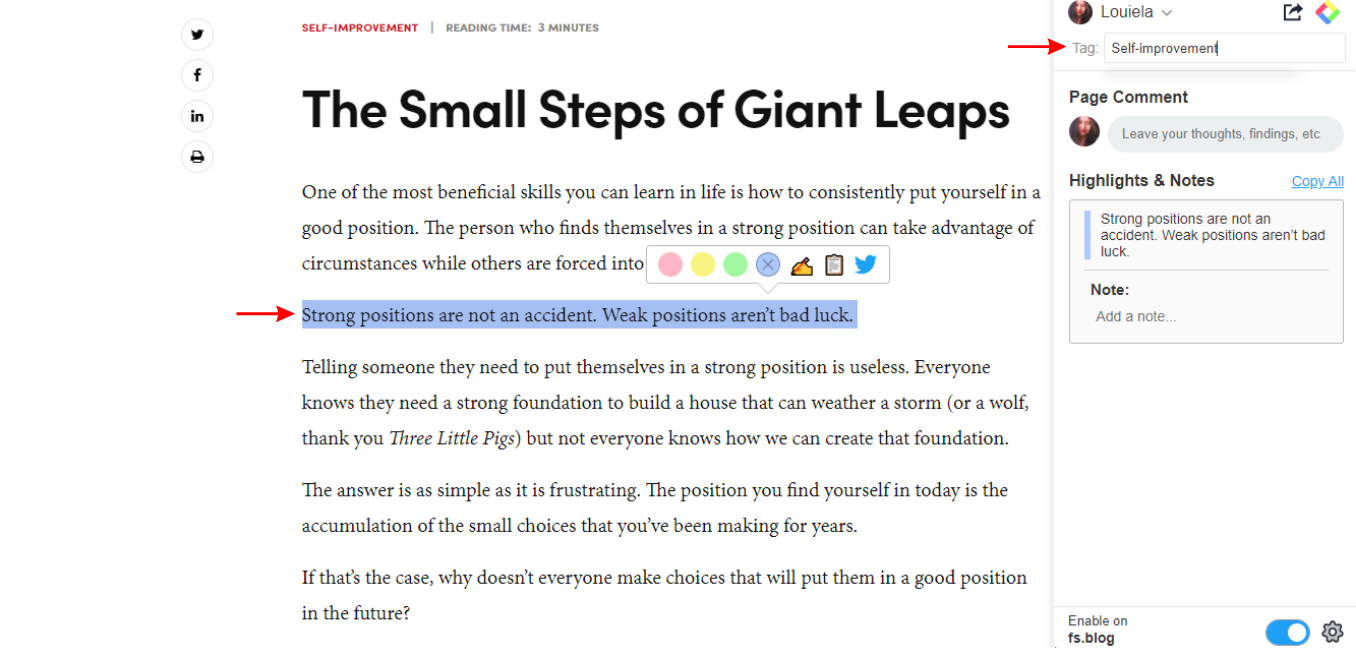
With that, you can add more tags up to your liking and depending on the topics of the articles you will read in the future.
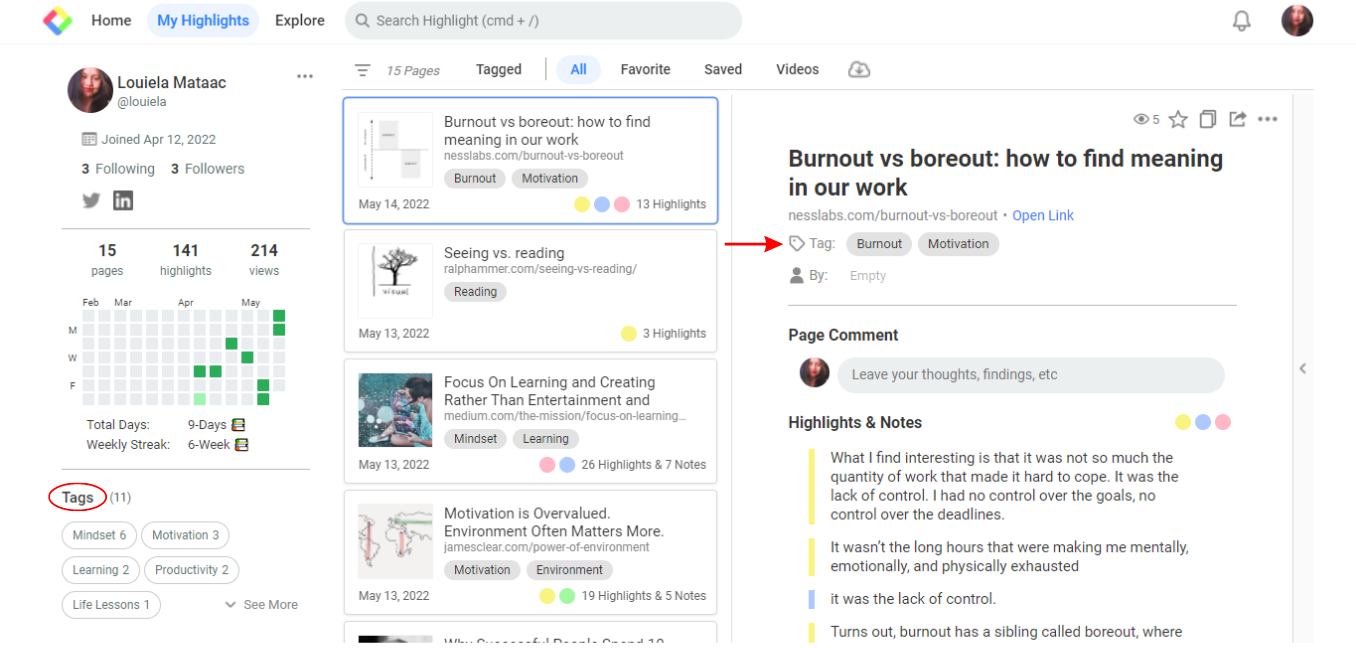
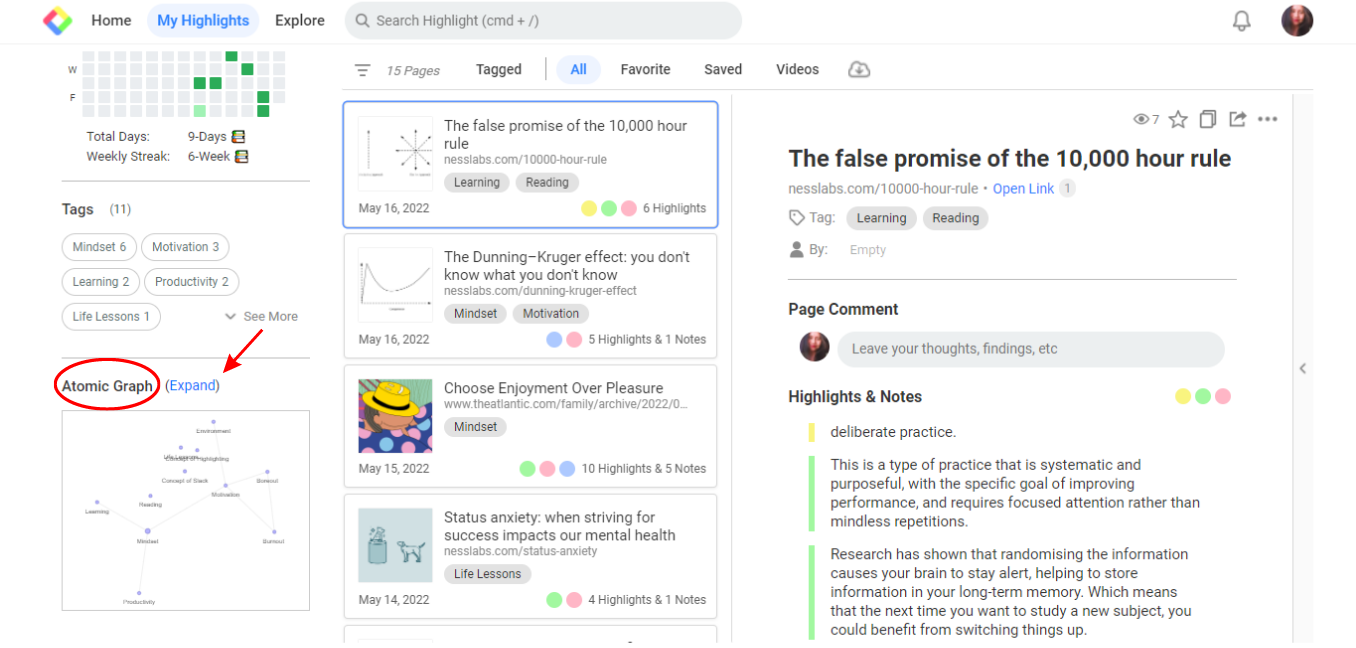
Step 2: Expand the Atomic Interest Graph
Through the topics or tags you will be inputting; your Atomic Interest Graph will also show how your interests interrelate with each other.
The more tags you enter, the more your Atomic Interest Graph will grow. Hence, the more frequently you use similar tags, the more your Atomic Interest Graph will display a connection with your interests.
Example of Atomic Interest Graph:
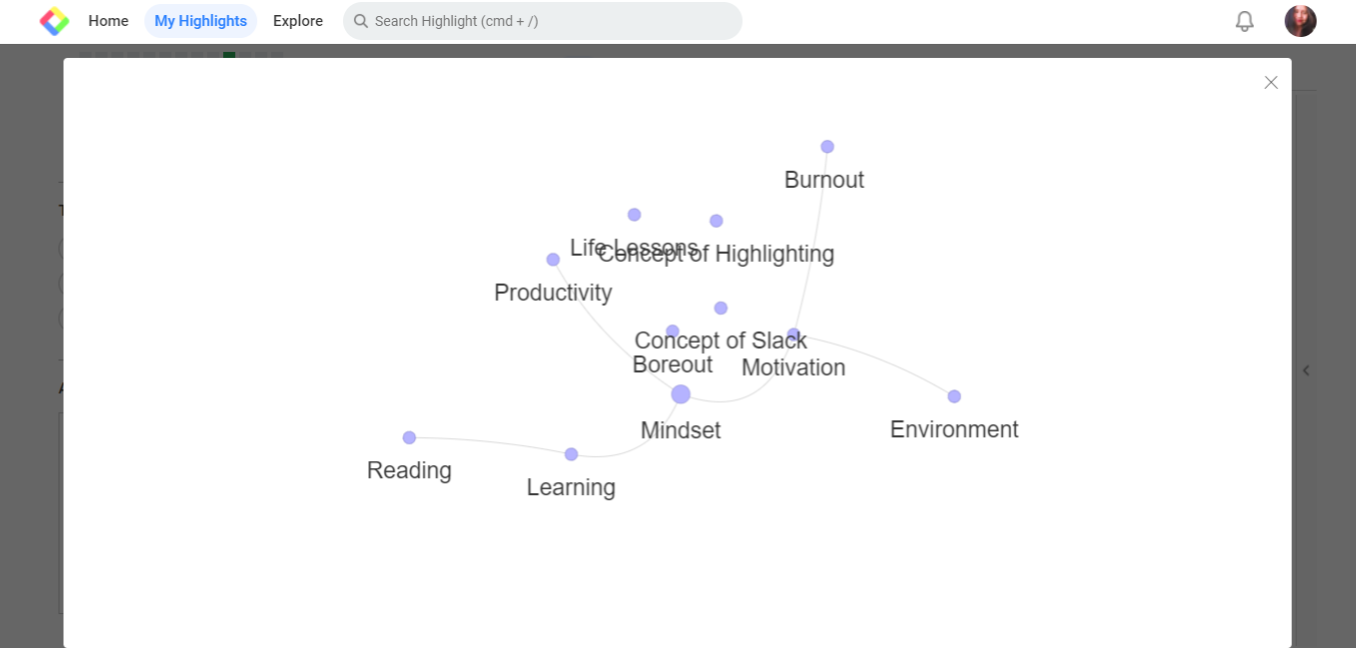
Atomic Interest Graph is here to guide you on understanding how your interest in learning grows over time; as it continues to regulate your pattern in broadening your knowledge and keeping track of your insights and discoveries.
Hope this helps you identify your interest and learning history.
FAQs
Q. Do I need to add tags manually?
Not necessarily. When you highlight an article, you can add tags manually, but Glasp also provides AI-powered Auto Tag Suggestions. This feature recommends relevant tags automatically, so you can simply select from the suggestions instead of typing everything by hand.
Q. Can I add multiple tags to one article?
Absolutely! In fact, adding multiple tags per article helps build a more complete graph and shows how your topics overlap.
Q. Where can I see the Atomic Interest Graph?
You’ll find it on your Glasp profile page once you’ve tagged multiple highlights.
Q. Can I customize or rename tags later?
Yes. You can edit tags anytime from your highlights page. The graph will automatically update to reflect changes.
Q. Is the graph private or public?
Your highlights and tags are generally public on Glasp (that’s part of the social learning aspect). However, you can manage visibility in your settings.
Before you leave
If you have any questions, please refer to the FAQ or contact us.
See you next time,
Glasp team